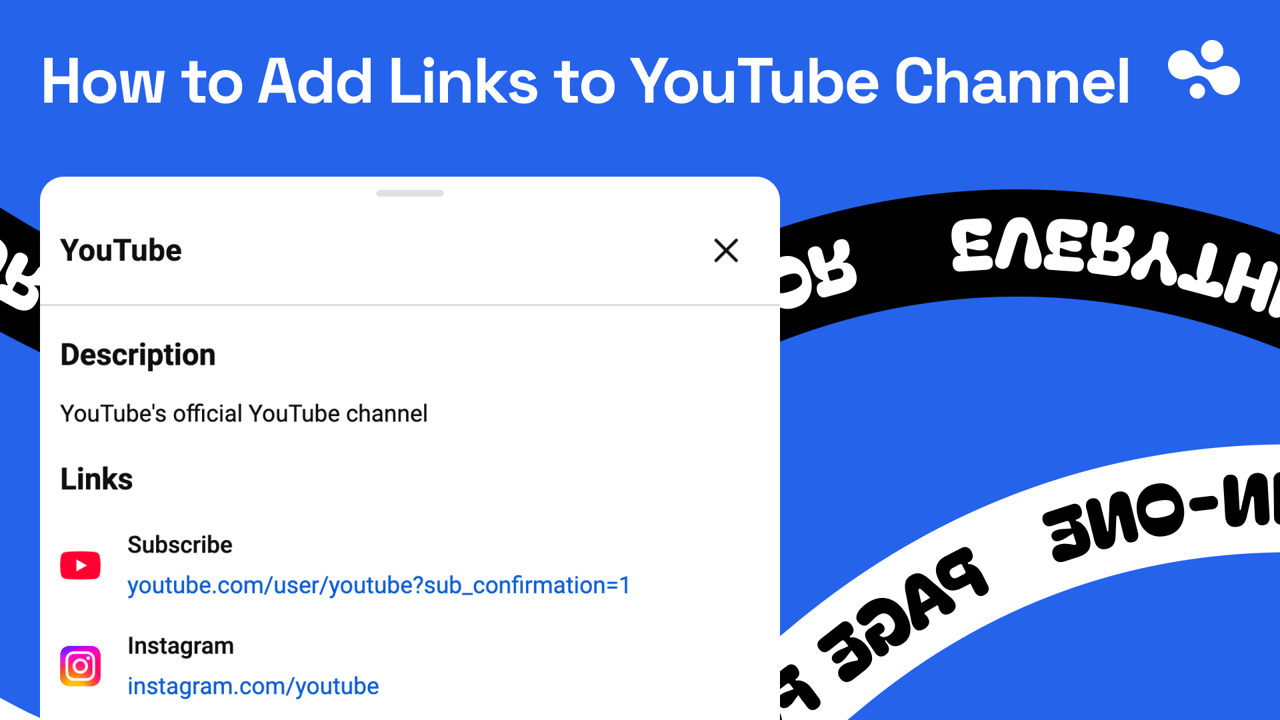
To add links to your YouTube channel: sign in to YouTube Studio, open Customization → Profile, find Links, click Add link, type a title and the URL, and click Publish. Any channel can add up to 14 links this way. The first shows in your channel header near the Subscribe button; the rest appear when a visitor clicks to see more.
Checked October 2026 against YouTube's help center: any channel can add up to 14 channel links, with no subscriber minimum; the External links policy is the only rule. Banner links are gone, and URLs in Shorts descriptions and Shorts comments are not clickable.
Adding channel links in YouTube Studio, step by step
On a computer:
- Sign in to YouTube Studio.
- In the left menu, click Customization, then Profile.
- Under Links, click Add link.
- Type a title that says what the link is ("Shop", "Book a call", "Newsletter") and paste the full address of the page.
- Add more links the same way, up to 14.
- Click Publish.
In the YouTube Studio app:
- Tap your profile picture (top right).
- Tap Edit next to your channel description.
- Tap Edit under Links.
- Tap Add and fill in the title and URL.
- Tap Done, then Save.
Looking for "Basic info"? Older tutorials send you to Customization → Basic info. YouTube's own help article now puts links under Customization → Profile, the same page where you edit your channel name, handle and description (YouTube Help: manage your channel's profile).
Where your links show (not on the banner any more)
Your first link sits in the profile section of your channel header: near the Subscribe button on desktop, above it in the app. The others only appear after a visitor clicks to see more links. So the first link is the only one shown without a click, and it deserves the most thought.
If you searched for how to add a link to your YouTube banner: you can't, on any channel. YouTube removed the clickable link icons from channel banners in August 2023 and moved links into the profile section (TechCrunch on the August 2023 banner and Shorts link changes). A URL painted into your banner art is just pixels.
Shorts: the description won't link out, but three things will
A URL in a Short's description or comments shows as plain text. YouTube made Shorts links non-clickable in August 2023, and its help center still gives the reason: "to reduce spam and scam attempts."
What does work in a Short:
- A related video. In YouTube Studio → Content, open the Short, pick a Related video from your channel, and click Save. Viewers see a tappable link under your handle. It can only point to one of your own public or unlisted videos, Shorts or live streams, and it needs advanced features access (next section). Point it at the long video whose description holds your real links.
- An @mention. Mentions in Shorts descriptions and comments are clickable, so you can send viewers to a second channel of yours.
- A brand link, for a Short in a reported brand deal. In the upload or edit screen of the Studio app or the YouTube app, tap Paid promotion & brands, find the partner, and tap Share access. The Short then carries one link to the partner brand's own site, which mobile viewers see as a sticker and in the description. It can't point to your own shop.
And the route every Short already has: a viewer who taps your name lands on your channel, where your first link is waiting. "Link on my channel" is the Shorts version of "link in bio".
Clickable description links need advanced features
YouTube's link table carries a footnote: "To add clickable external links, you must enable your channel's access to advanced features." Without that access, a URL in your video description doesn't work as a link. Pinned comments are an advanced feature too, so the "link in the pinned comment" habit needs the same step.
Advanced features access is a verification level, not a subscriber count. YouTube says most active channels already have enough history to qualify. To see where you stand, go to YouTube Studio → Settings → Channel → Feature eligibility.
Phone verification alone gets you intermediate features. Advanced needs one more thing: enough channel history, or an ID or video check. YouTube says the ID and video checks aren't offered to every creator, and an ID check usually takes about 24 hours to review (YouTube Help: advanced features).
Cards and end screens wait for the Partner Program
External links on info cards and end screens need the YouTube Partner Program. Until you're in, cards can still point to any public YouTube video or playlist, or to a channel. End screens can show a video, a playlist, a channel or a Subscribe button.
The limits are small. A video takes up to five cards, and cards don't run on videos set as made for kids. An end screen fills the last 5–20 seconds of a video at least 25 seconds long, with up to four elements on a 16:9 video and fewer on some other shapes.
Checked October 2026: the Partner Program opens at 1,000 subscribers plus either 4,000 qualified public watch hours in the last 12 months or 10 million qualified Shorts views in the last 90 days (YouTube Help: Partner Program).
Until then, an end screen that points to a video with your links in its description does much of the same job.
Only the channel header is open to every channel
| Where | Clickable | Who can use it | Can point to |
|---|---|---|---|
| Channel links (up to 14) | Yes | Any channel | Any site that follows the External links policy |
| Long-form video description | Yes | Advanced features access | Any site |
| Long-form comments, including a pinned comment | Yes | Advanced features access | Any site |
| Shorts description and comments | URLs no, @mentions yes | Any channel | Mentions open a channel |
| Shorts related video | Yes | Advanced features access | Your own public or unlisted video, Short or live |
| Shorts brand link | Yes, on mobile | Reported brand deals | The partner brand's site |
| Info card link | Yes | Partner Program | Any site |
| End screen link | Yes | Partner Program | Any site |
YouTube's full table of clickable links also covers live chat, Shopping affiliate links, remix attribution and Posts, which most channels never set up by hand. Card and end-screen rows come from YouTube's help pages on info cards and end screens.
Fourteen links or one link page
Use the 14 slots for what they suit: your other profiles (Instagram, TikTok, a podcast) and a couple of fixed destinations. Put a link-in-bio page in the first slot when any of these is true:
- You have more than two things people should tap. A page shows them all, with labels and images, in an order you choose.
- The same link sits on Instagram and TikTok too. One page to update instead of three profiles.
- You want to know which link earned the click. YouTube's help center, checked October 2026, describes no click count for channel links. A link page that counts clicks per link does (what to read in those numbers).
If a link page fits, create your InBio page and put its address first. It's free and takes a minute to set up. Any link page does the job of that slot.
What goes first: the destination you most want a new viewer to reach this month. For a channel that sells one thing, that's the product page. For a coach or a studio, the booking page. Not your homepage, which makes a visitor start navigating from scratch.
Link not clickable? Check where it lives
- In a Short. That's the rule, not a bug. Use a related video or an @mention, or tell viewers the link is on your channel.
- In a long video's description. Check Settings → Channel → Feature eligibility; you probably need advanced features access.
- It disappeared. YouTube removes links that lead to content breaking its Community Guidelines, and may remove a link it can't verify as safe. A first violation usually brings a warning with no penalty to the channel (External links policy). Link straight to a page you control rather than through a chain of redirects.
Now that the links are live, point viewers at them
Three things, in order. Say it out loud in videos: "link's on my channel" tells viewers where the tap is. Give every Short a related video that leads to a long video with your links in the description. And once advanced features are on, pin a comment with the one link that matters for that video.
The same rules for Instagram, TikTok, Threads, X and the rest are in bio link rules for every platform. More on making one link count is in the link in bio basics hub.